 bizzle
3c4b80a6d8
bizzle
3c4b80a6d8
Capture Create, Library, Editor, and Settings pages via Playwright;
embed in a Screenshots section so they render on the repo home page.

Co-Authored-By: Claude Opus 4.8 (1M context) <noreply@anthropic.com>
5.6 KiB
✎ Mr. Drew's Assignment Creator
A local, private, accuracy-first generator for quizzes, tests, worksheets, discussion questions, and case studies — for any grade level from kindergarten to college.
Everything runs in a single Docker container on your own machine. With a local AI (Ollama or LM Studio), nothing you type ever leaves your computer.
Why it's accurate
Most AI assignment tools fire off one giant "make me a quiz" request and hope for the best. This app runs a three-stage pipeline instead:
- Analyze — the AI reads your source material and maps its key concepts, facts, and vocabulary.
- Generate — questions are written strictly from your source. The AI is forbidden from adding outside facts, and every question carries a
Source:quote proving where its answer comes from. - Verify — a second, skeptical AI pass re-checks every question and answer against the source. Each is stamped ✓ Verified, or flagged ⚠ Check this with a note telling you exactly what to look at.
You stay in control: every question can be edited, regenerated with a steering note ("make it harder", "focus on causes"), or replaced — and you can re-run the accuracy check any time.
Screenshots
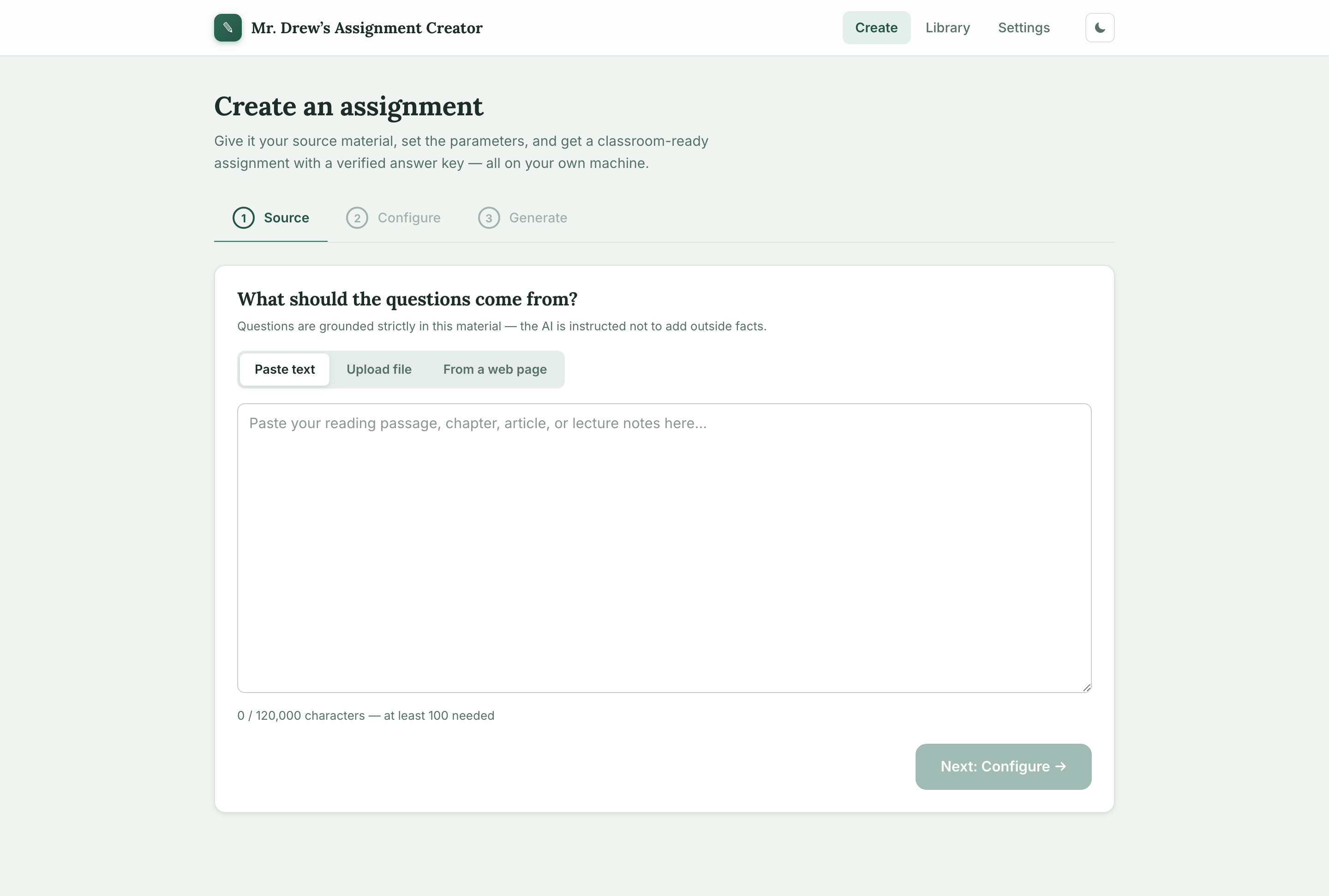
Create — paste, upload, or pull from a URL, then set parameters and generate.
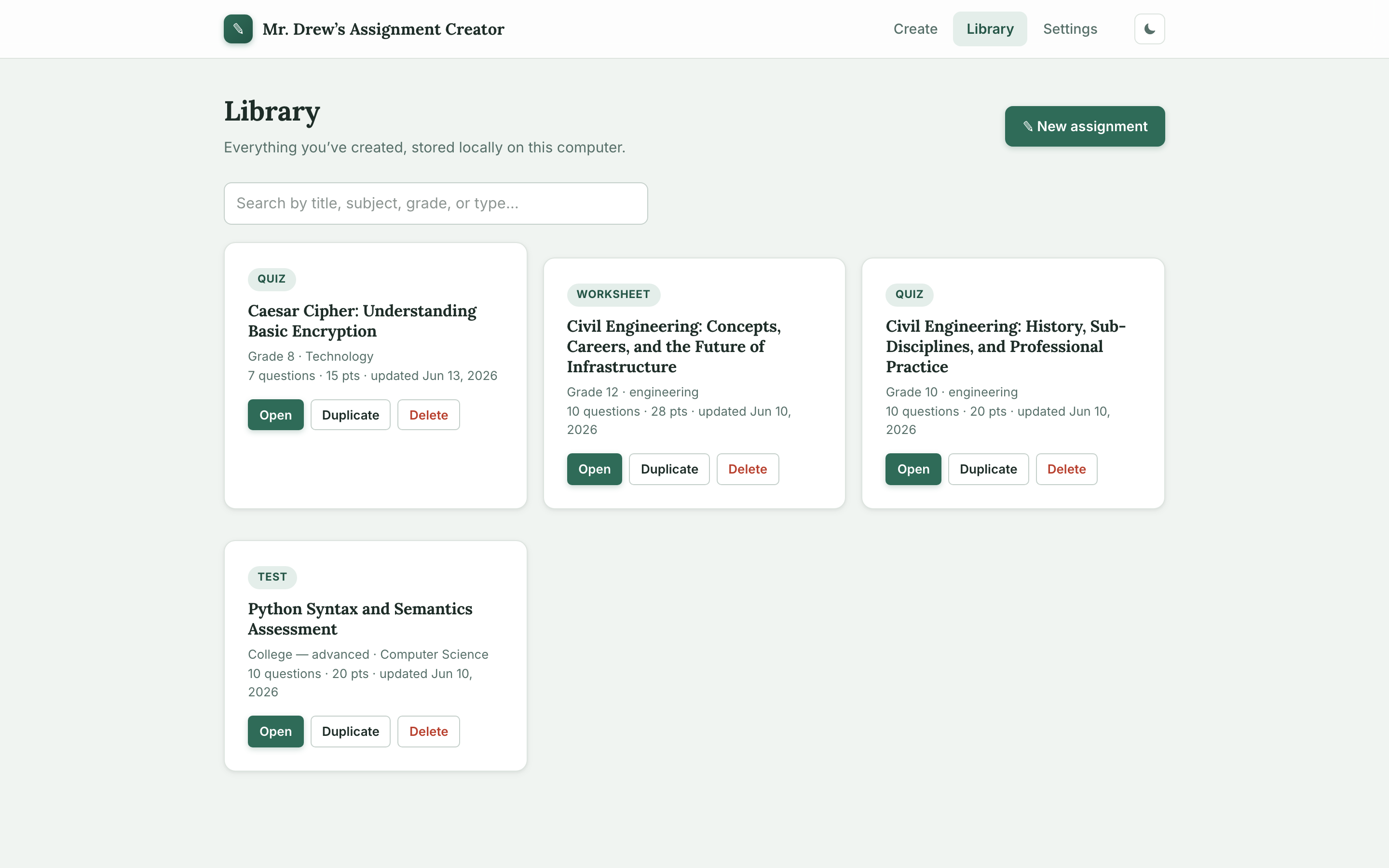
Library — every assignment you've made, stored locally on your machine.
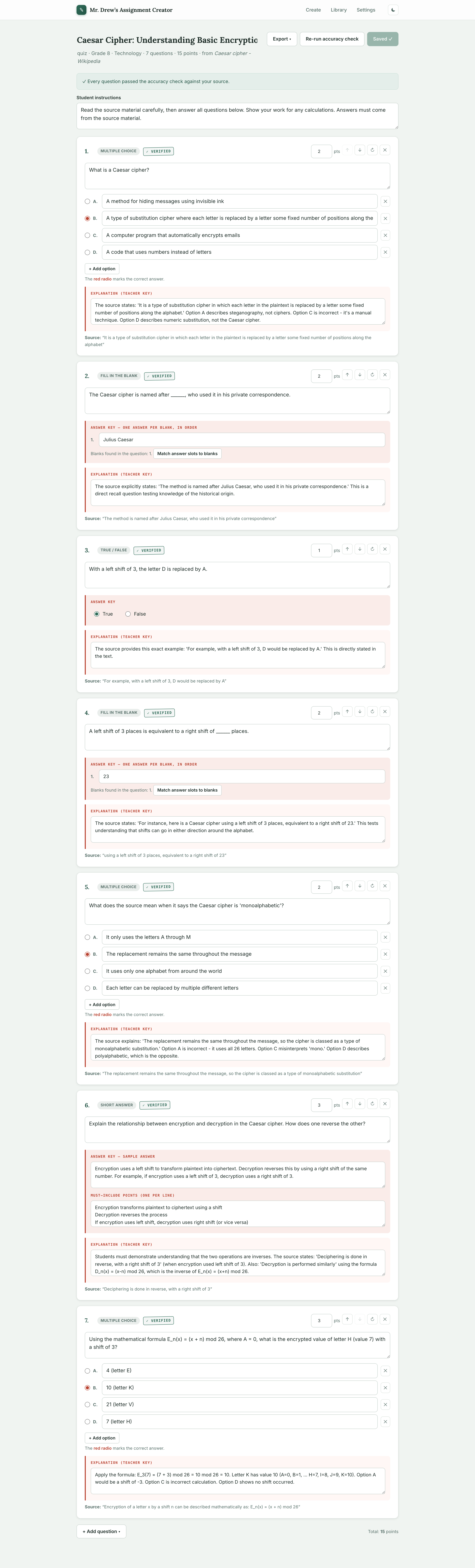
Editor — per-question editing with ✓ Verified / ⚠ Check this accuracy badges and source quotes.
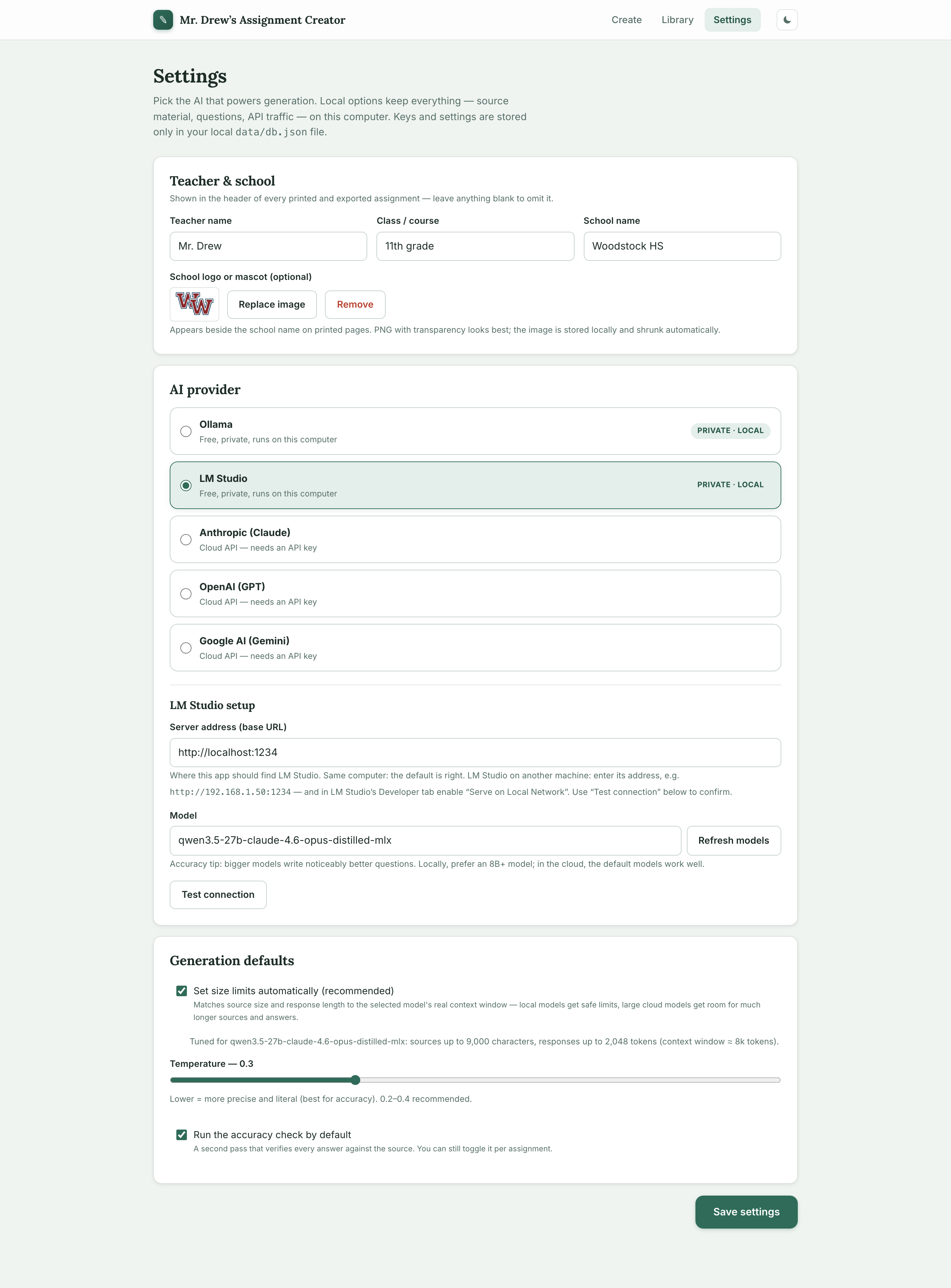
Settings — pick your AI provider (local or cloud) and set your school profile.
What you need
- Docker — Docker Desktop on macOS/Windows, or Docker Engine on Linux. That's the only thing you install.
- One AI provider (pick any one):
- Ollama (free, private, local) — https://ollama.com
- LM Studio (free, private, local) — https://lmstudio.ai
- An Anthropic, OpenAI, or Google AI API key (cloud, pay-per-use) — paste it on the Settings page, no networking setup needed.
Quick start
macOS / Windows (Docker Desktop)
git clone https://git.bizzle.lol/bizzle/mr-drews-assignment-creator.git
cd mr-drews-assignment-creator/docker
docker compose up -d
Open http://localhost:3000. Done.
The container automatically reaches the Ollama / LM Studio running on your machine (via host.docker.internal). Just make sure one of them is running:
- Ollama — have the Ollama app open (or run
ollama serve). - LM Studio — open the Developer tab and start the local server.
Linux
git clone https://git.bizzle.lol/bizzle/mr-drews-assignment-creator.git
cd mr-drews-assignment-creator/docker
docker compose -f docker-compose.linux.yml up -d
Open http://localhost:3000. This variant uses host networking, so the container sees Ollama / LM Studio on plain localhost — no extra setup, even if Ollama is bound to 127.0.0.1 (its default).
The first
docker compose upbuilds the image from source — expect it to take a couple of minutes. Subsequent starts are instant.
First run: pick your AI
- Open http://localhost:3000 and go to Settings.
- Choose a provider:
- Ollama / LM Studio — confirm the server address, then click Test connection.
- Anthropic / OpenAI / Google — paste your API key.
- Save. Head back to the home page and generate your first assignment.
Where is my data?
Everything — assignments, settings, API keys, your school logo — lives in a single JSON file inside the assignment-data Docker volume. It survives restarts, rebuilds, and image upgrades.
Back it up any time:
cd docker
docker compose cp assignment-creator:/app/data/db.json ./db-backup.json
Ollama / LM Studio on a different machine
Common setup: the app runs in Docker on a server or NAS, while Ollama runs on your desktop with the GPU. Two steps:
- On the machine running the LLM, allow network connections:
- Ollama — set
OLLAMA_HOST=0.0.0.0(Ollama app → Settings → "Expose Ollama to the network", or the env var) and restart Ollama. - LM Studio — Developer tab → server settings → enable "Serve on Local Network".
- Ollama — set
- In the app, open Settings, select Ollama or LM Studio, and enter that machine's address in "Server address (base URL)" — e.g.
http://192.168.1.50:11434. Click Test connection, then Save.
The saved address always wins over the compose defaults. You can also pre-set defaults for fresh installs via the OLLAMA_BASE_URL / LMSTUDIO_BASE_URL environment variables in docker/docker-compose.yml.
Updating
cd docker
docker compose up -d --build
Your data volume is untouched by rebuilds.
Troubleshooting
- "Could not reach Ollama" on macOS/Windows — confirm Ollama is running on your machine (
ollama listin a terminal). The default compose file already points the app at your machine, not at the container. - "Could not reach Ollama" on Linux with the default compose file — use
docker-compose.linux.ymlinstead, or setOLLAMA_HOST=0.0.0.0so Ollama accepts connections from containers. - Port 3000 already in use — change the first number in
ports:indocker/docker-compose.yml(e.g."8080:3000") and open http://localhost:8080. - Stop the app —
cd docker && docker compose down(your data volume is kept).